Uploading a photo of a National ID card, passport, or driver’s license for identity verification has become a mandatory process across many digital services. However, providing personal identity documents also carries risks of data leaks, identity theft, and illegal personal data trading. Performing thorough safety checks before uploading is a critical line of defense to protect your digital assets and personal privacy.
Evaluating the IDVT Platform: Legitimate vs. High-Risk Data Collection Portals
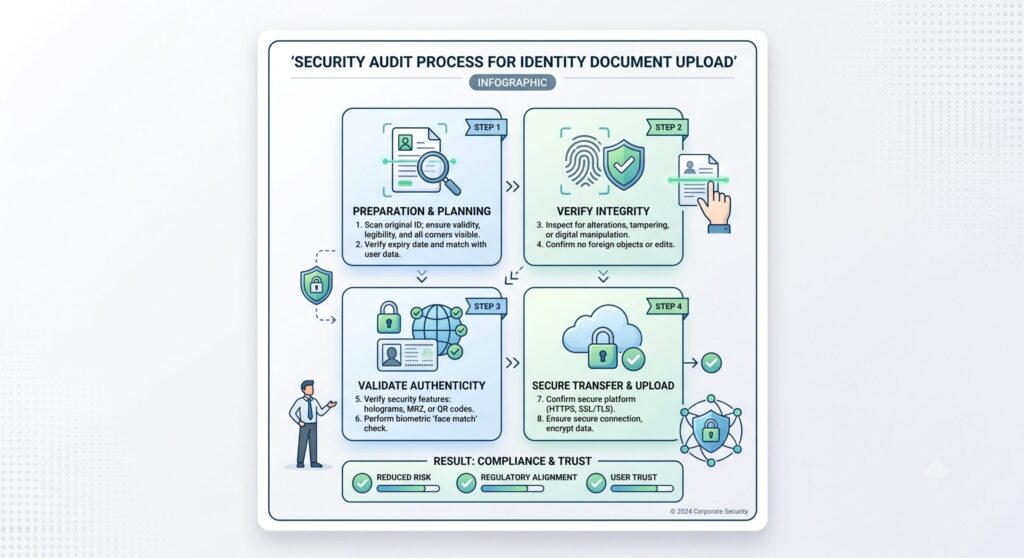
Before selecting an image file from your device, evaluate the technical infrastructure of the receiving website. Reputable identity verification services utilize modern Identity Document Validation Technology (IDVT) combined with strict information security standards.
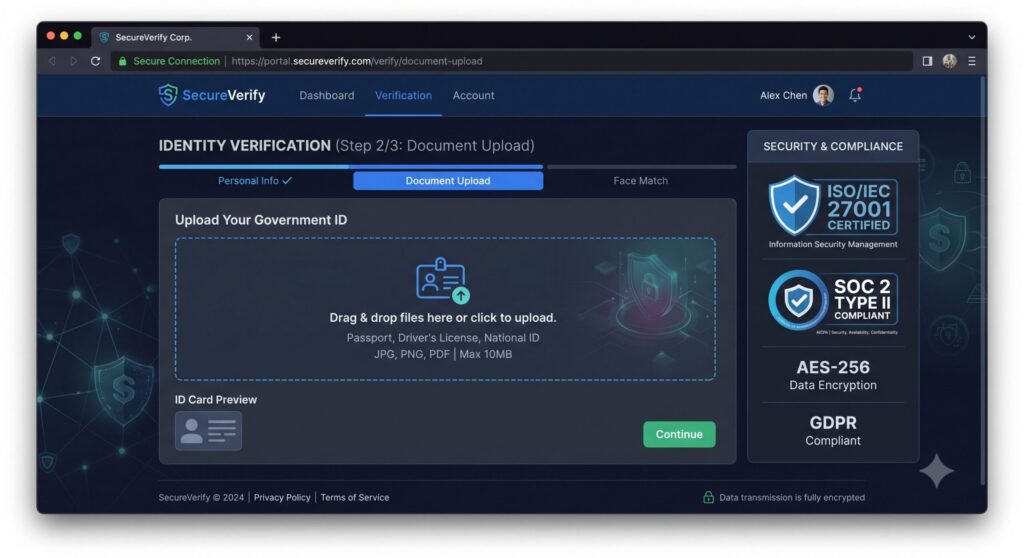
Verifying Security Certificates (HTTPS, ISO/IEC 27001, SOC 2 Type II) and Domain Names
The website address is the primary indicator reflecting the reliability of a data collection portal.
- Padlock Icon and HTTPS Protocol: The browser address bar must show a closed padlock icon and start with
https://. This ensures that your image data is encrypted in transit using TLS/SSL protocols as it travels from your device to the server. - Domain Name Audit: Carefully verify that the web address matches the official corporate domain name of the enterprise. Cybercriminals frequently use typosquatting to construct fraudulent upload pages.
- International Cybersecurity Certifications: Leading IDVT solution providers (such as Regula, Jumio, Onfido, or Stripe Identity) prominently display certification badges such as ISO/IEC 27001 (Information Security Management) or SOC 2 Type II (Security and Privacy Trust Criteria). If a portal lacks HTTPS or operates on an unfamiliar domain, do not upload your ID documents.
Identifying Processing Mechanisms: Automated AI/OCR vs. Human Review
Different processing mechanisms present varying levels of data privacy exposure:
- Automated AI/OCR Systems: ID photos are automatically scanned using Optical Character Recognition (OCR) algorithms to extract textual data, after which the raw image file is encrypted or purged. This automated workflow provides strong privacy because no human operators directly handle or inspect the file.
- Human Review: In cases where an image is blurry or flagged by automated rules, operational staff manually open and inspect the file. If a service relies on manual human review, the platform must explicitly state its confidentiality obligations and restricted data access policies for employees.
Applying the Data Minimisation Principle Before Uploading
Under the Data Minimisation principle, online services should only collect personal data strictly necessary for the declared verification purpose.
Classifying Mandatory Information vs. Redactable Fields
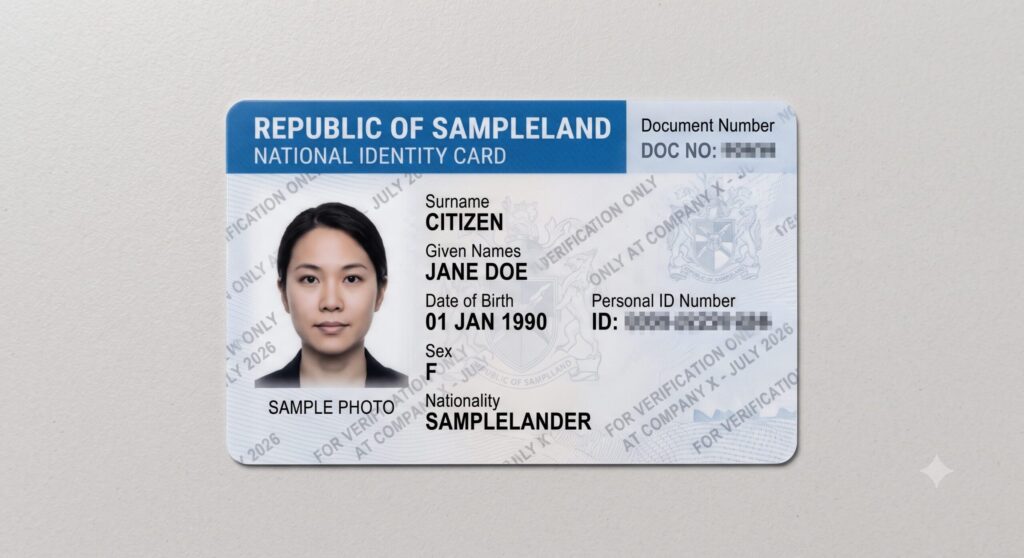
Not every online platform has the legal authority or functional need to inspect all data fields on your ID card. Under Anti-Money Laundering (AML) regulations, regulated financial institutions are required to collect complete, unedited copies of both sides of your identity document without redacting any fields.
However, non-financial platforms usually only need to verify your Full Name, Date of Birth, and Document Validity. You can use image editing software to redact sensitive fields such as National Identification Numbers, Home Address, Distinguishing Marks, or Fingerprints if the system does not explicitly require them.
Applying Safe Image Watermarks
Watermarking prevents malicious actors from re-using your ID scan to register for unauthorized third-party services if a data breach occurs. Insert a semi-transparent diagonal or horizontal text overlay stating: [For verification only at Company X] + [Date/Month/Year]. Do not obscure barcodes, QR codes, or the Machine Readable Zone (MRZ) on passports or national IDs, as automated IDVT algorithms will reject documents with obscured encoded areas.
Evaluating Retention Policies and Post-Verification Data Rights
A common misconception is that the verification process ends the moment the system displays “Success.” In reality, post-verification data governance is where long-term leakage risks develop.
Raw Image Storage Limits vs. Extracted Text Data
A transparent provider must explicitly disclose in its Privacy Policy what happens to your raw ID photo file after completion:
- Secure Model: The provider retains only extracted textual metadata and a unique hash key, permanently destroying original JPG/PNG image files within 24 to 72 hours.
- High-Risk Model: The provider permanently stores raw image files on unencrypted cloud servers. If breached, all stored user ID photos are exposed to unauthorized access.
Executing Data Deletion Requests
After your account is verified, you retain the legal right to request that the collecting entity purge your ID card photo under applicable privacy regulations (such as GDPR or regional data protection laws).
Submit a Formal Deletion Request: Send a formal email requesting the immediate deletion of raw ID image files from primary servers and backups while retaining only your verified status badge. Reputable providers will confirm file destruction within 7 to 30 business days.
Save Confirmation Screen: Upon completing the upload, capture a screenshot containing your Reference/Transaction ID and the exact timestamp.
Locate Request Channels: Look for “Privacy Rights,” “Data Subject Access Request (DSAR),” or Data Protection Officer (DPO) contact information in the website footer.
Uploading identity documents online requires a proactive approach to safeguard your personal data from leaks and fraud. By verifying platform security, applying protective watermarks, and executing data deletion requests post-verification, you can complete required checks while maintaining full control over your sensitive information. Taking these quick precautionary steps ensures your digital identity stays safe across online services.